Connecting Sage 50
Sage 50 provides accounting software which MotorDesk connects with to automate your accounting processes.
It is important to note that this is far different from the other accounting integrations offered by MotorDesk. Unlike our Xero, QuickBooks, and Sage Cloud Accounting integrations, the Sage 50 integration is not a live integration where invoices created in MotorDesk are automatically created within your accounting software. You must handle this using the manual data export features provided by MotorDesk.
Importing Nominal Codes
To begin, your nominal codes must first be imported into MotorDesk. This is only possible when another accounting software isn't already connected to MotorDesk.
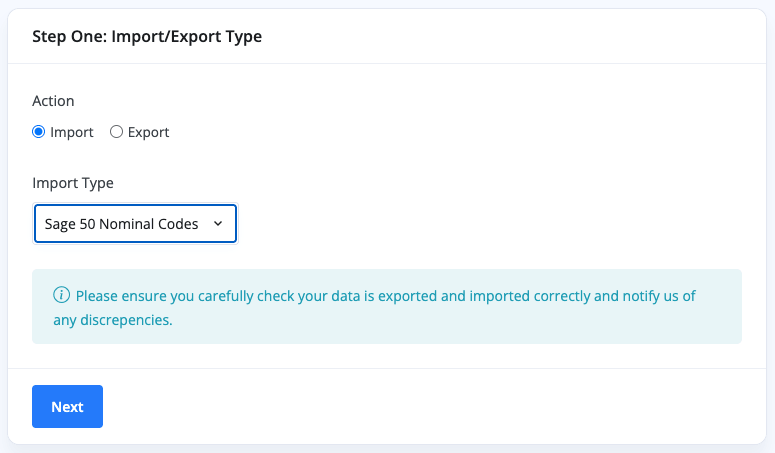
Step 1 : Configure Import Type
First, navigate to the Business -> Import Data section of MotorDesk.
Next, select 'Import' as the action, and then 'Sage 50 Nominal Codes' as the import type.
Step 2 : Upload File
Next you will have to select a file to upload. This must be a CSV or XLS file that contains two columns with headers: 'nominal_code' and 'name'.
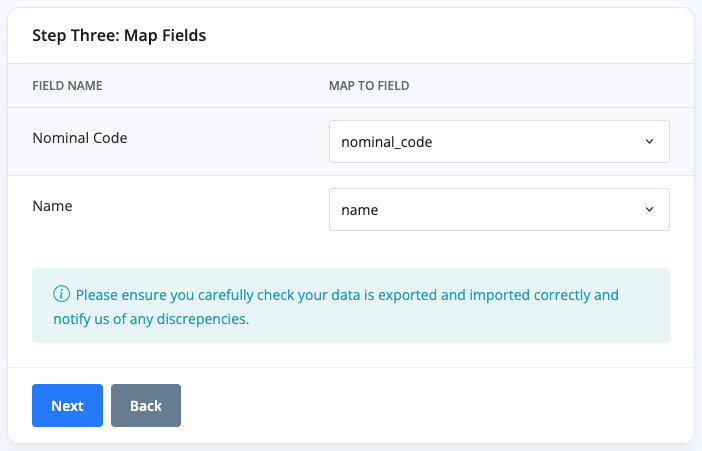
Step 3 : Map Fields
This ensures that the columns within your uploaded file map to the correct fields within MotorDesk.
You would simply ensure that 'Nominal Code' maps to 'nominal_code' and 'Name' maps to 'name'.
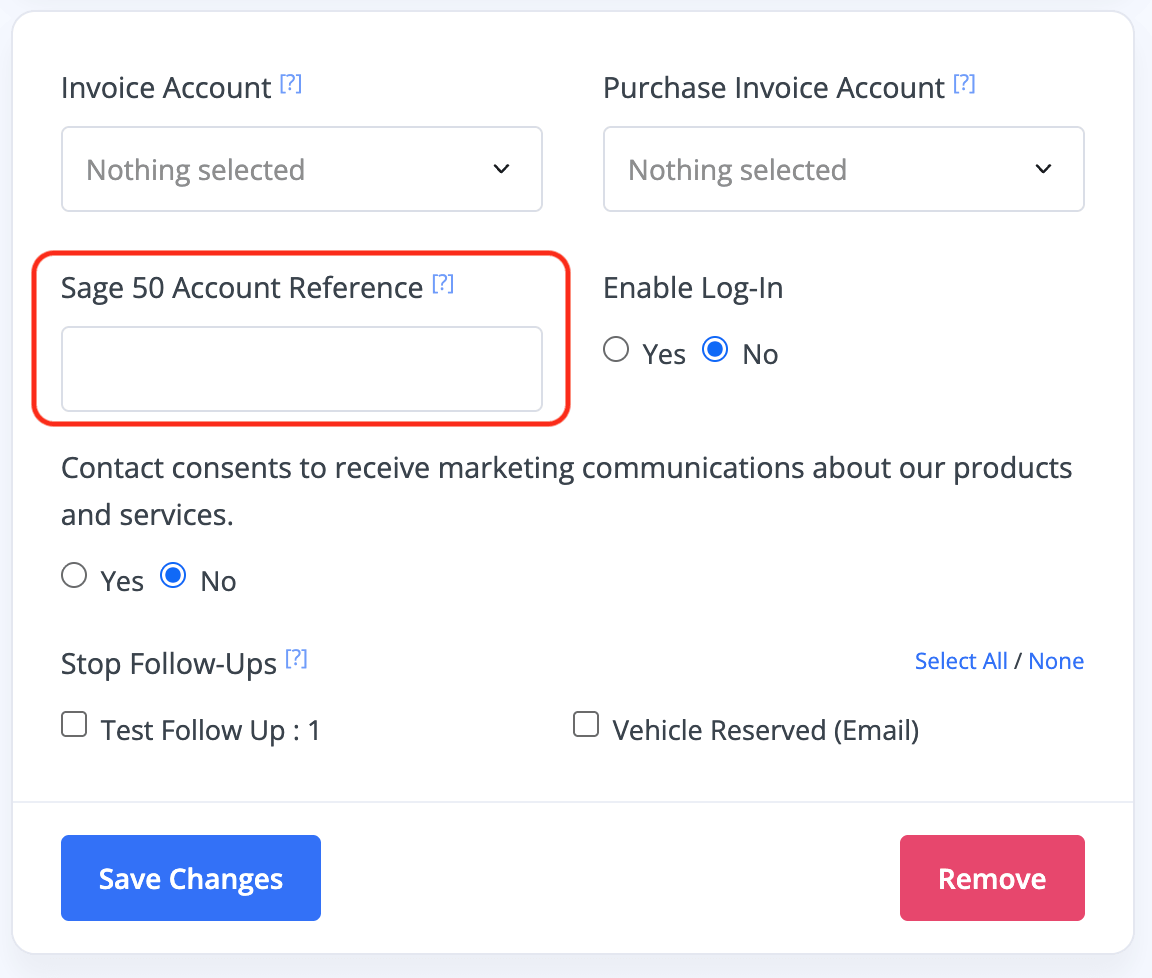
Once your nominal codes have been imported, you will be able to select to use them for any invoices, contacts, products, etc. You will also notice a new 'Sage 50 Account Reference' field is available for contacts.
Importing Contacts
Your contacts can now be imported from Sage, it is important to select the 'Sage 50' service so the account references (Sage 50 Account Reference) can be imported.
By doing this, this will ensure the account (customer/supplier) references can be maintained to keep invoices/purchases linked with existing customers/suppliers within Sage 50.
Please see here for our guide on importing contacts.
Exporting Data
There are three Sage 50 exports that you can use:
- Sage 50 Customers
- Sage 50 Suppliers
- Sage 50 Audit Trail
All of these exports can be found in the Business -> Export Data section of MotorDesk.
Sage 50 Customers
Simply exports a CSV file that contains a list of your customers within MotorDesk. This includes all the required fields for you to then import this directly into Sage 50.
Sage 50 Suppliers
Simply exports a CSV file that contains a list of your suppliers within MotorDesk. This includes all the required fields for you to then import this directly into Sage 50.
Note: It is very important that purchase invoice contacts have the supplier type enabled, so that they are exported correctly as suppliers.
Sage 50 Audit Trail
This exports your transactions (Invoices & Purchases) between a timeframe that you set. It will also include journal entries to manage the recording of vehicles as assets.
You will first need to set the 'Date From' and the 'Date To' values. This will control what range of transactions will be exported from MotorDesk.
Then you can select what statuses of transactions you'd like to export. These correspond to the invoice statuses, i.e. Draft, Issued, Paid... etc.
Finally, you can set the nominal codes for each type of transaction.
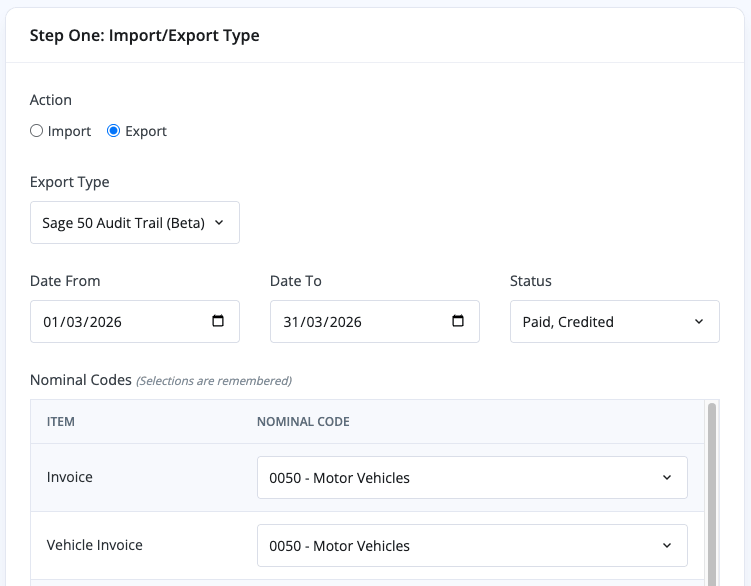
Note: This sets the defaults which get overridden by codes set for products and invoices. When you next export, these codes will be remembered and used.
Related Documentation
Set-Up Guidance
- Accounting/Nominal Codes
- Connecting Aircall
- Connecting AutoTrader
- Connecting Bird Messaging (NEW)
- Connecting Bird Messaging (OLD)
- Connecting Intuit QuickBooks
- Connecting MessageBird
- Connecting RingCentral
- Connecting Sage 50
- Connecting Sage Cloud Accounting
- Connecting Stripe
- Connecting takepayments
- Connecting Third-Party Websites
- Connecting Xero
- Creating Your Business Account
- Getting Started Guide
- Online Checkout & Deal Builder Set-Up
- Sales Channels & Marketplaces
- Set-Up Bing Webmaster Tools
- Set-Up Facebook Site Verification
- Set-Up Facebook/Meta Catalogue & Automotive Ads
- Set-Up Google Ads and Facebook Pixel Conversion Tracking
- Set-Up Google Analytics
- Set-Up Google Search Console
- Set-Up Google Tag Manager
- Set-Up Google Vehicle Ads
- Set-Up Meta Pixel (Facebook Pixel)
- Set-Up Vehicle Image Background Removal
- Set-Up Vehicle Image Branding
- Set-Up Vehicle Image Library
- Set-Up Vehicle Image Templates
- Synchronising External Calendar Software/App
- Transferring Your Domain