Connecting Bird Messaging (NEW)
Bird (formerly MessageBird) is a communications company which provides messaging systems which enable us to integrate SMS, WhatsApp, Facebook Messenger, Instagram and LINE messaging with the MotorDesk platform.
1. Sign-up With Bird
Visit Bird.com to sign-up with Bird. You do not need to sign-up to a membership plan with a monthly fee, we will be using the 'API Pricing'.
2. Buy a Number
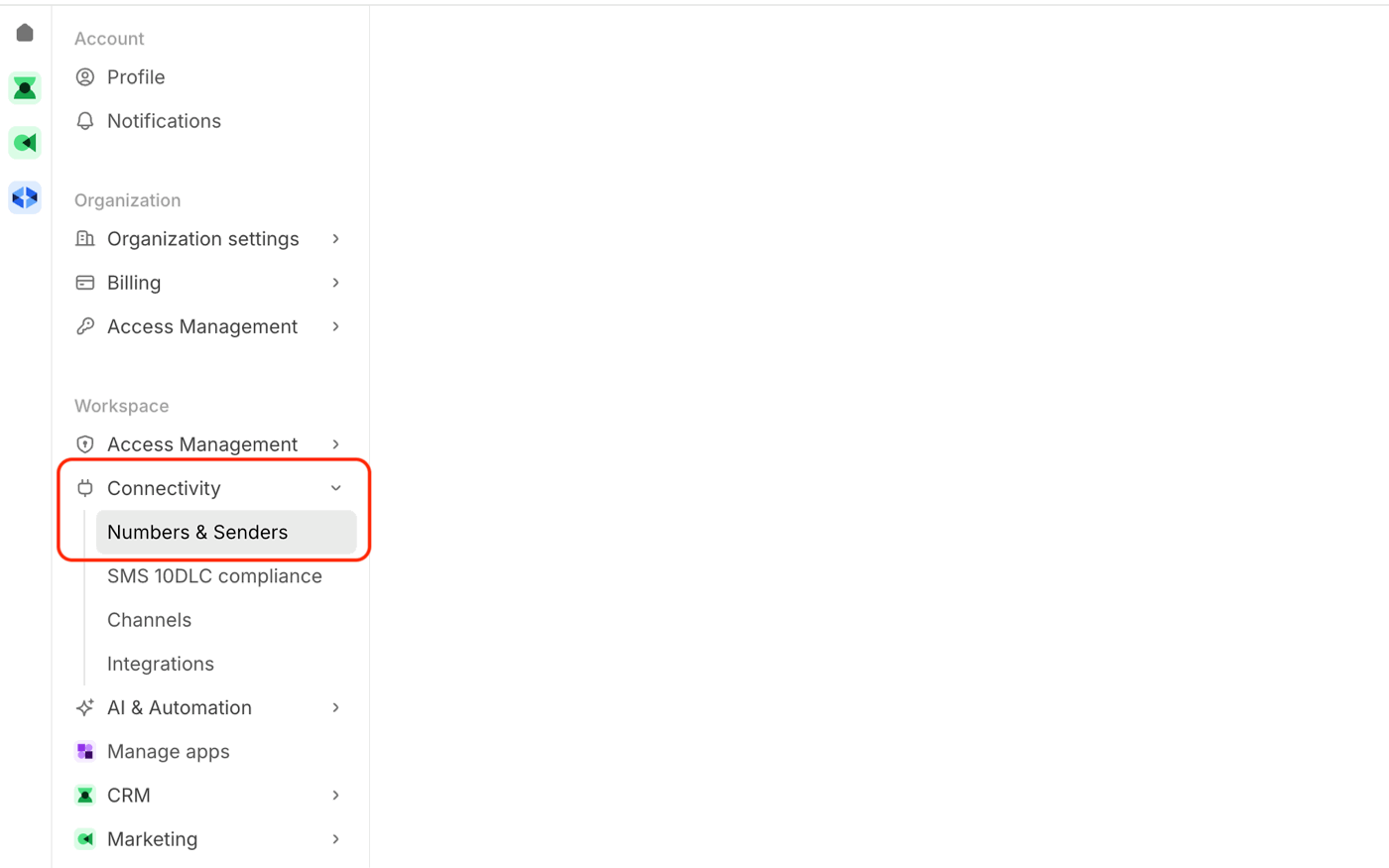
Once you've signed-up and completed the initial account set-up, please go to the Channels section within Bird.
You will then be presented with a screen with a menu on the left hand side of the page. Click the 'Numbers & Senders' option, as shown in the picture below.
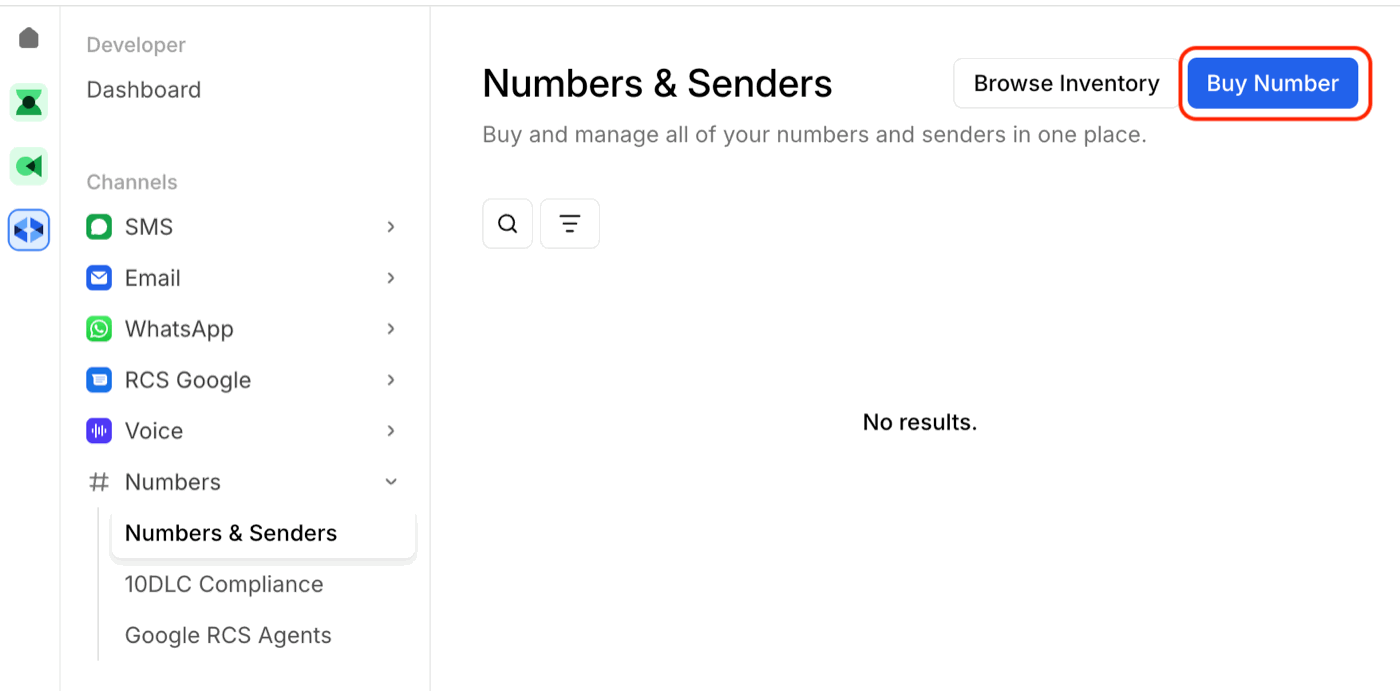
You will then be presented with a page that has a blue 'Buy Number' button in the top right. Click that.
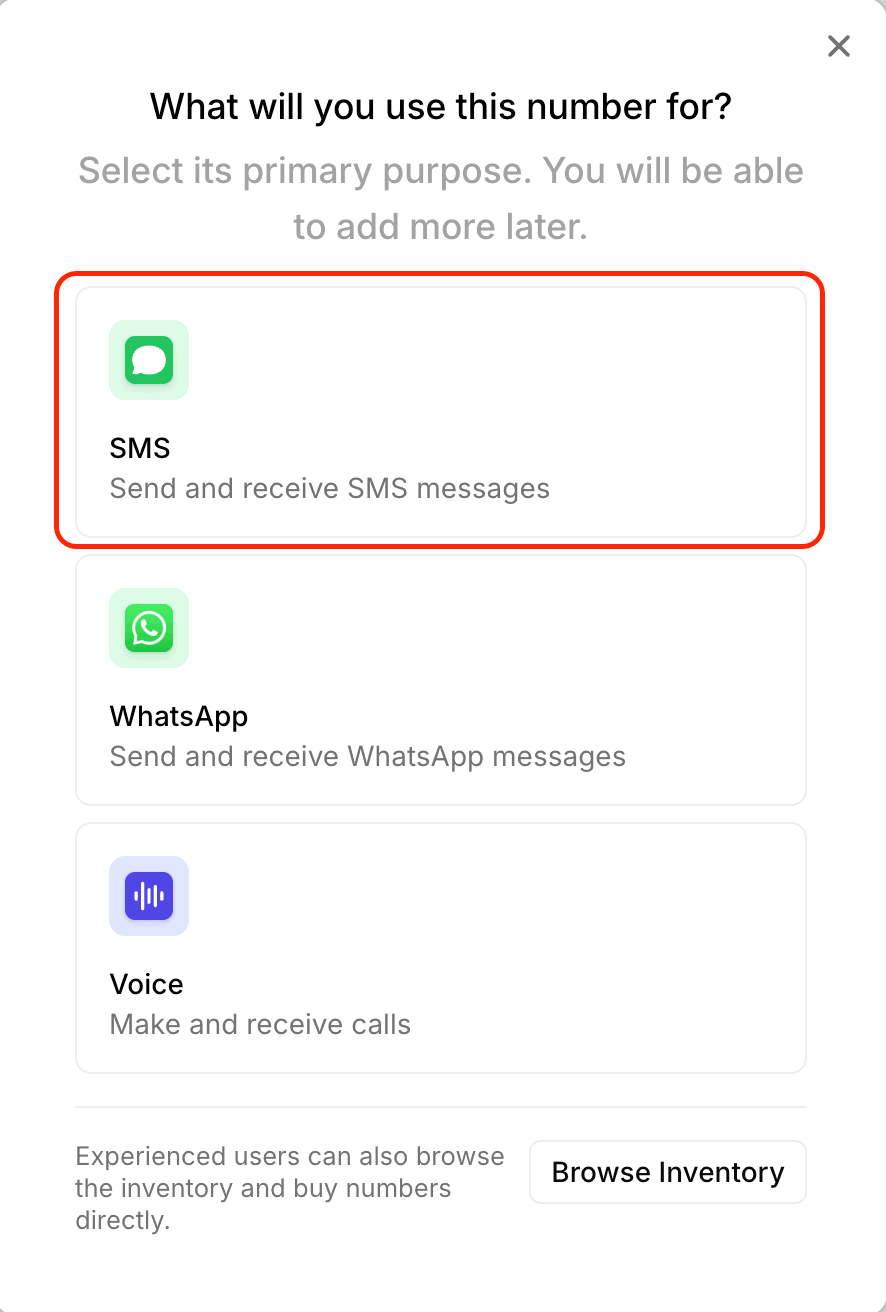
Choose 'SMS' in the pop-up window that asks what you'll be using this number for.
Then select your country of operation, then click the blue 'Continue' button in the top right.
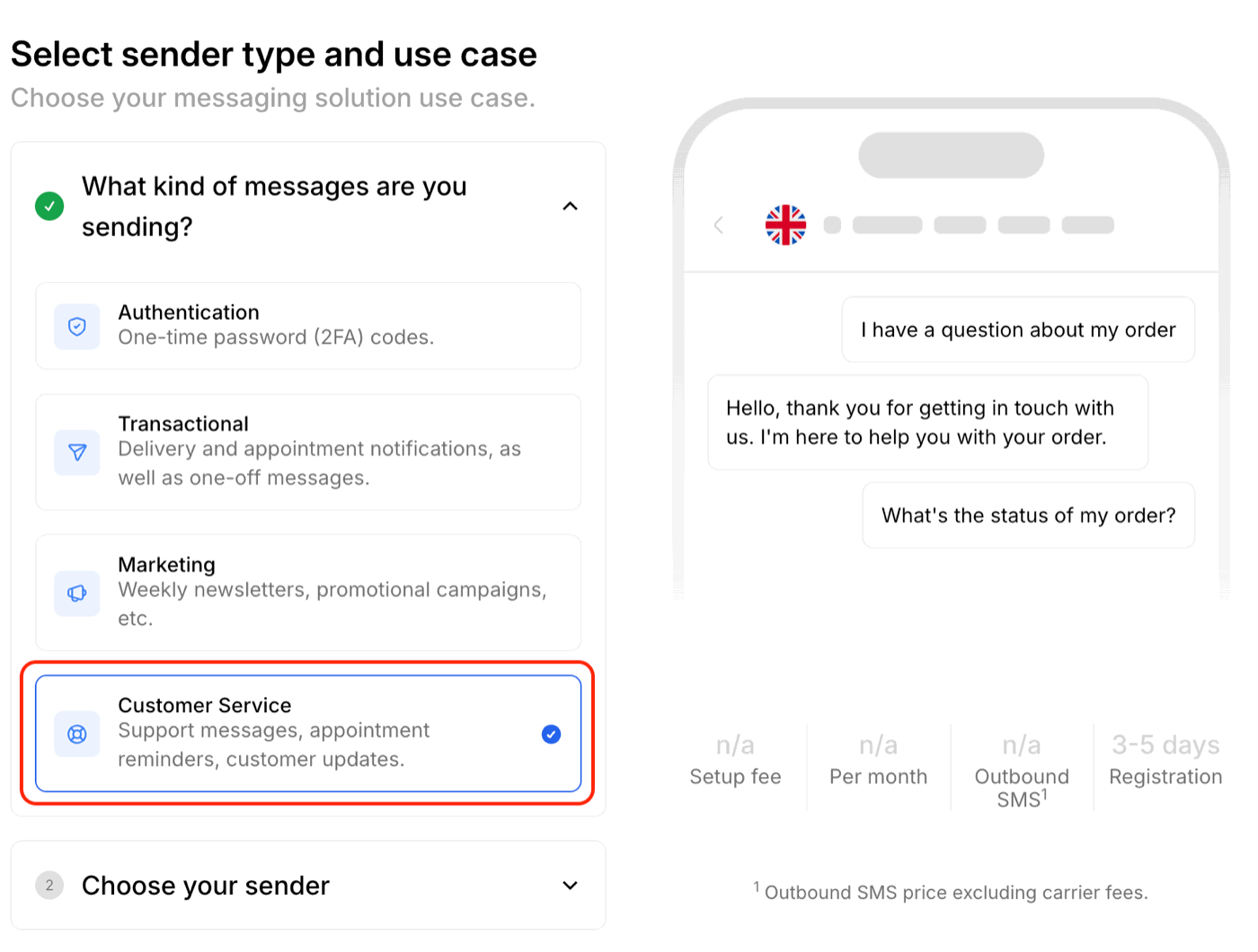
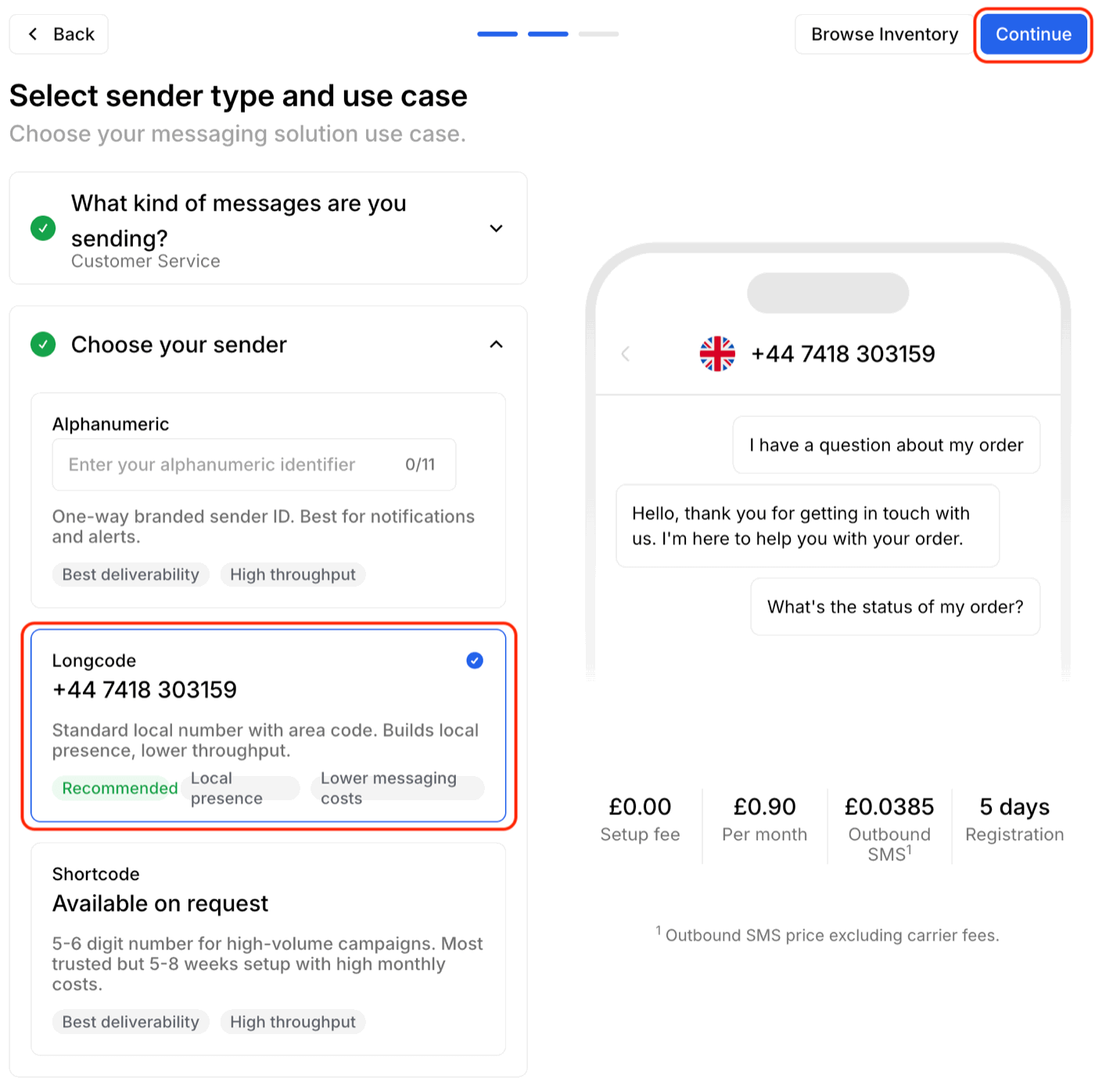
Next, select 'Customer Service' as the use case.
Select 'Longcode' as the sender and then click the blue 'Continue' button in the top right..
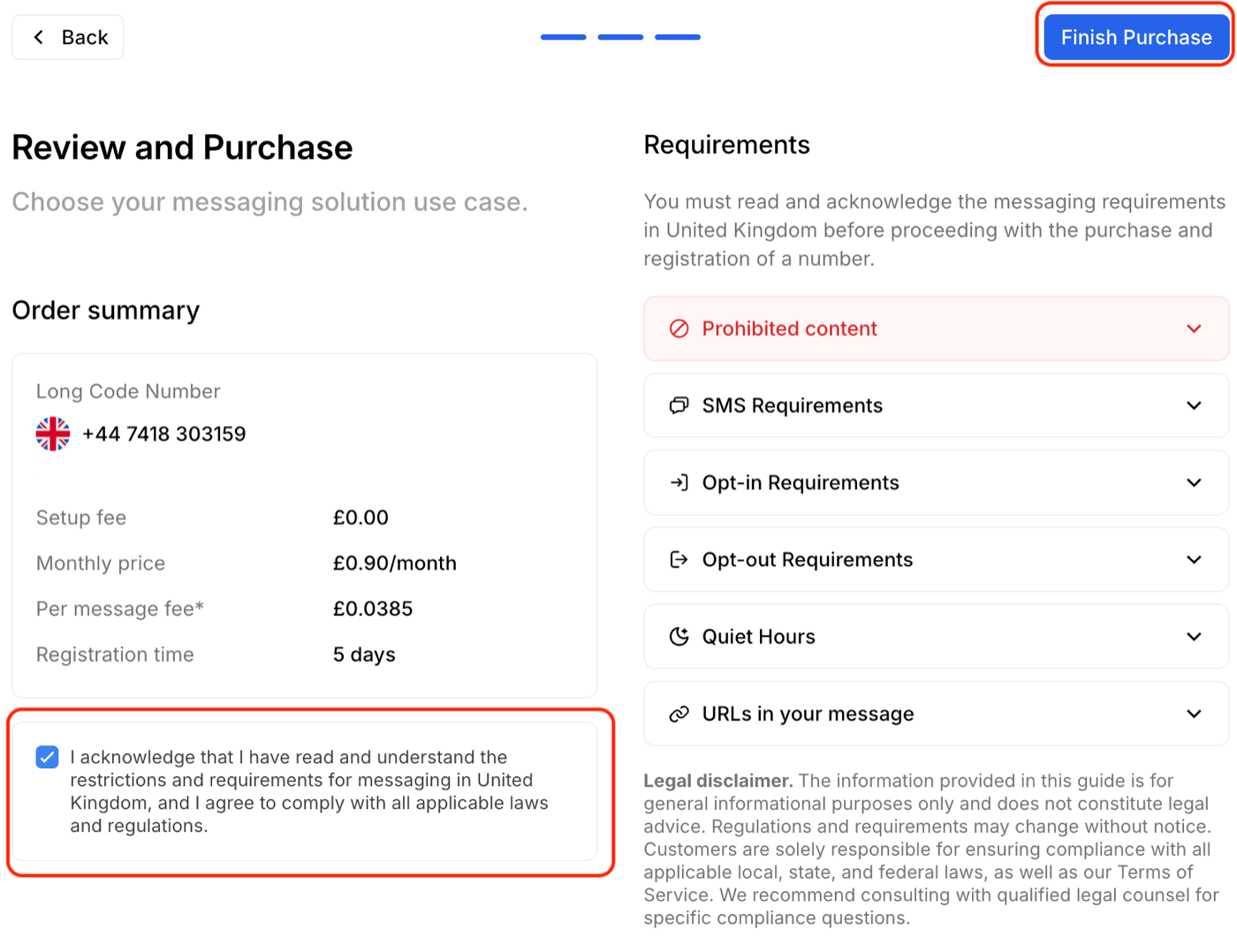
Finally, read through the requirements and then check the 'I acknowledge...' box, and then click 'Finish Purchase'.
To purchase the number, you will need to top-up your account balance with Bird, the minimum top-up is currently £15 GBP. Your messaging and number charges will be deducted from this balance as you use the service and you will then top-up periodically as needed.
You have now successfully bought a longcode number from Bird.
3. Number Compliance
Now, navigate back to the 'Numbers & Senders' section of Bird. You can do so by navigating to the Channels section, and then clicking the 'Numbers & Senders' option on the menu to the left hand side.
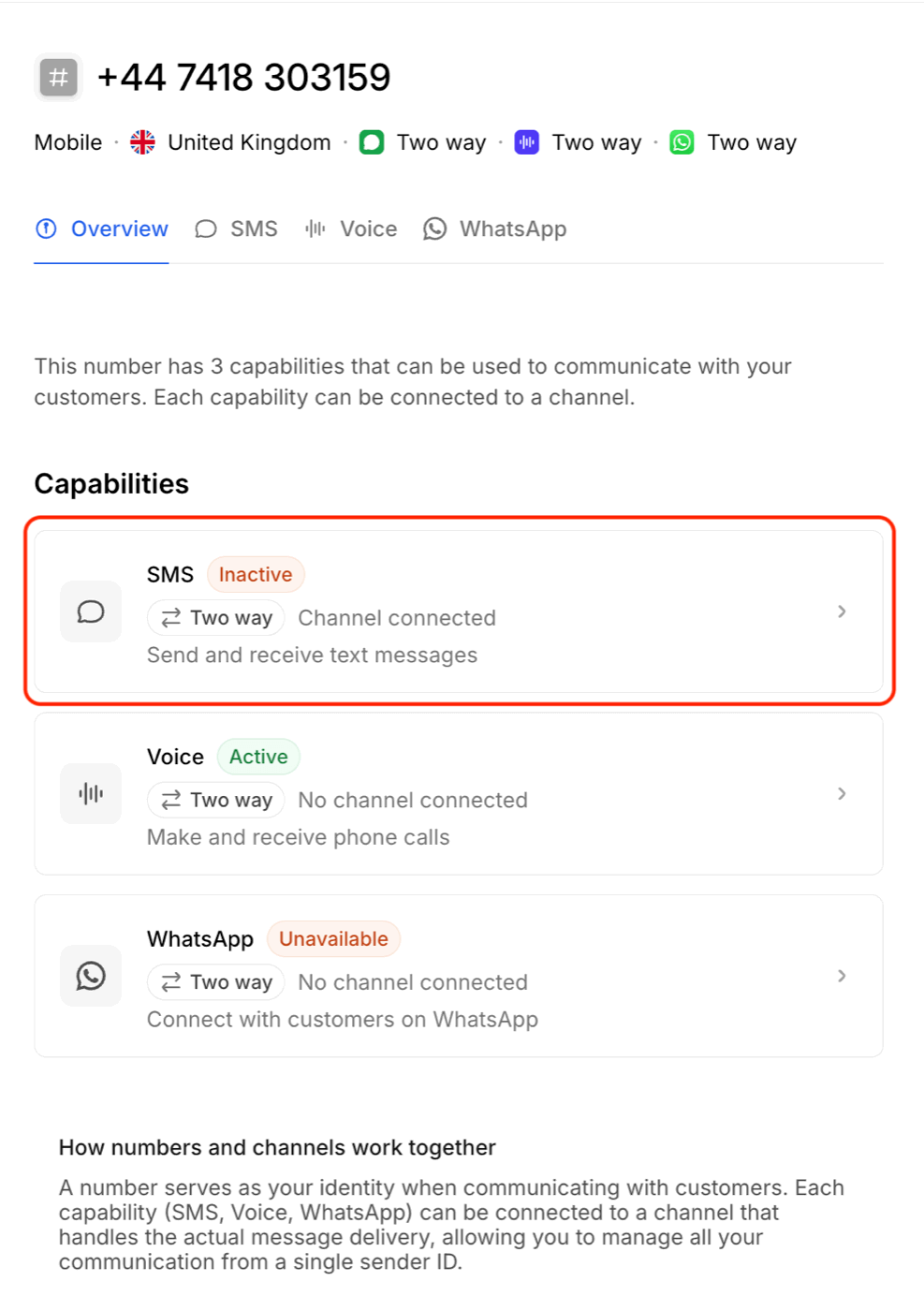
Select your number that you have just bought. You will then be presented with a screen that contains this section. You will need to click 'SMS' and then for each item in the 'Destinations and Compliance' section, you will need to complete the compliance.
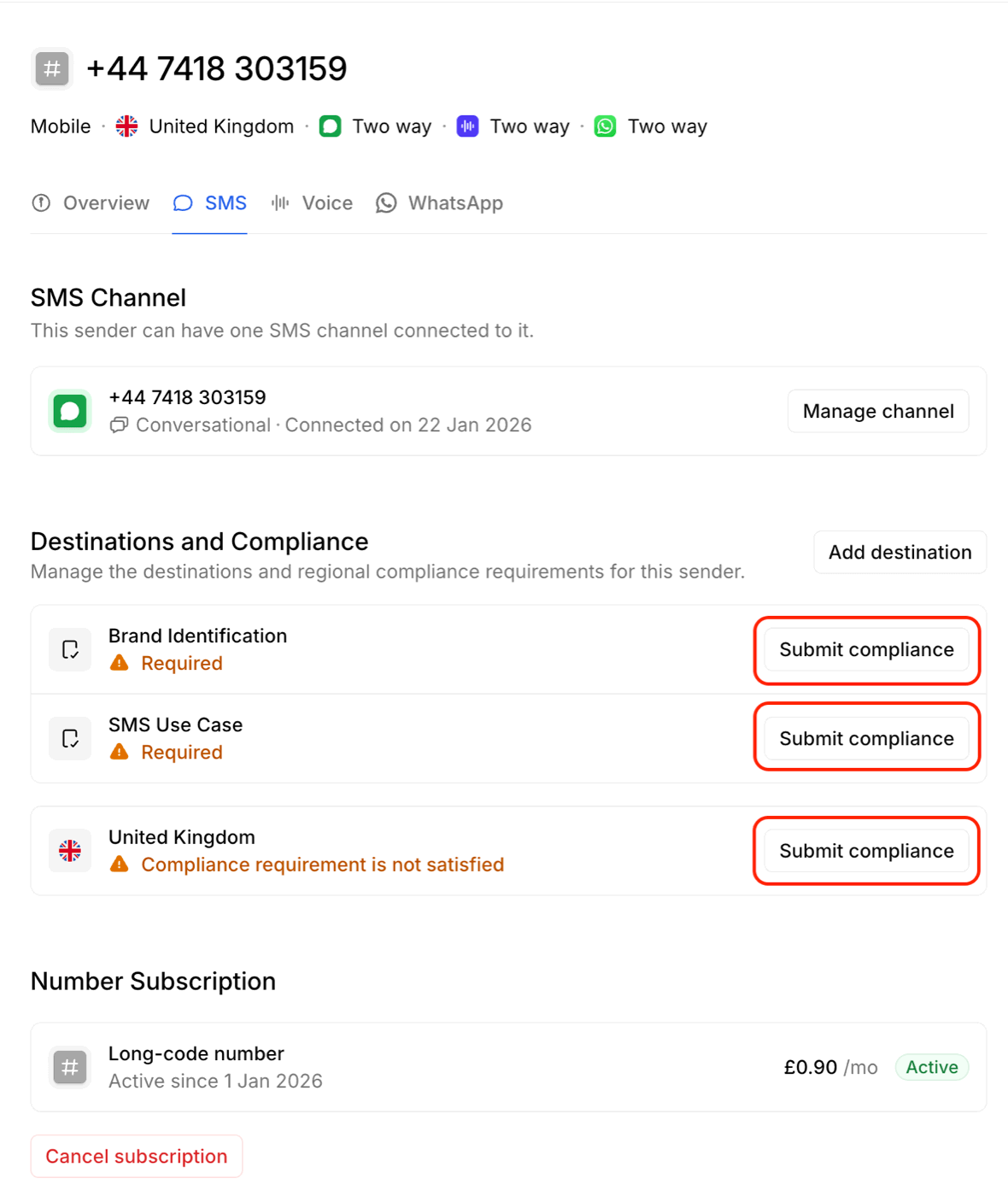
For the 'Brand Identification' simply enter your business details.
For the 'SMS Use Case' we recommend setting the 'Use Case' as 'Customer Care'.
Example description:
2-way customer initiated messaging for sales and service.
Sample message 1:
Thank you for your interest in this vehicle, would you like to arrange a test drive?
Sample message 2:
Yes, this vehicle is still available. Would you like to book a viewing appointment?
Sample message 3:
Yes, all our vehicles include a 12 month warranty, and we offer free nationwide delivery.
Once submitted, the compliance verification process can take several weeks to complete, during this time you can receive SMS message but you will be unable to send SMS messages.
4. Set-up Channels
Please navigate to the Channels section within Bird and enable any channels you would like to use, such as WhatsApp, Facebook Messenger, Instagram Messaging and Line. Bird frequently adds new channels which MotorDesk may not yet support, please contact MotorDesk support for assistance enabling these.
5. Set-Up MotorDesk
Next go to the Business -> Connect Services -> Communications section of your MotorDesk account and complete the Bird set-up.
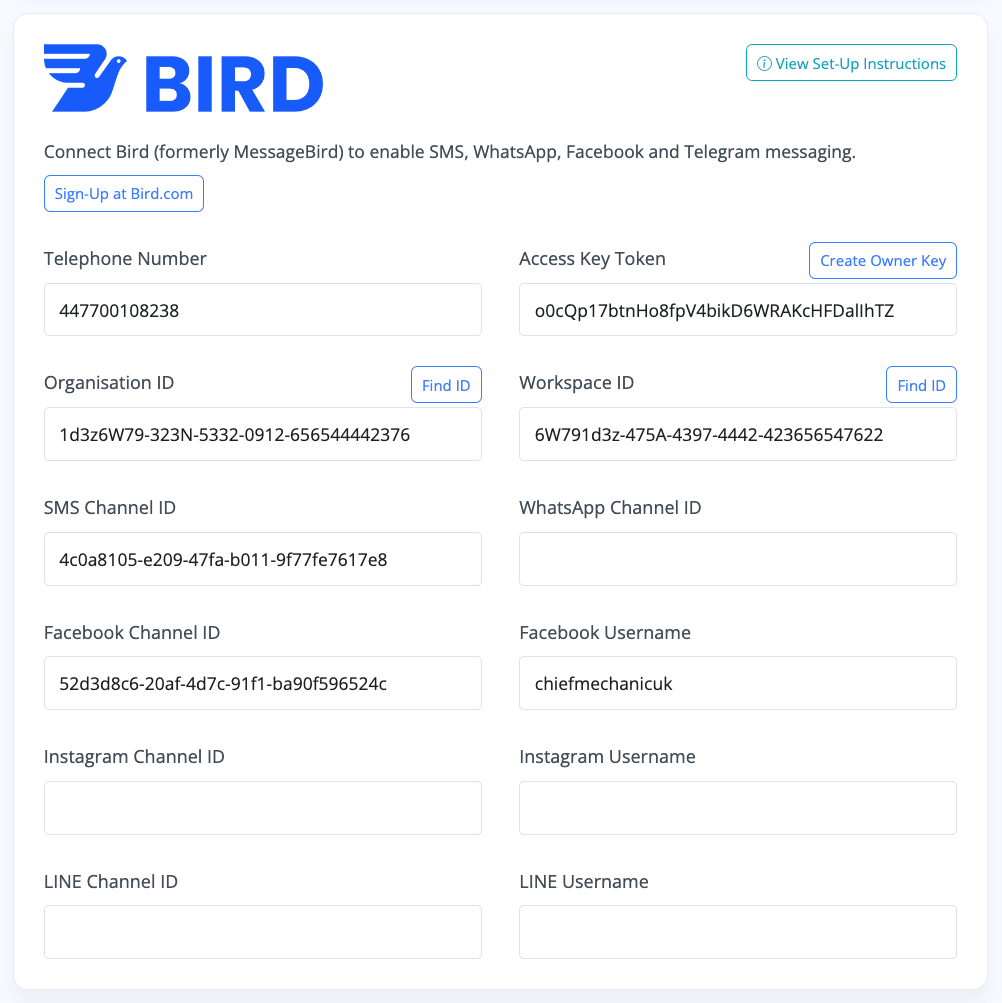
Telephone Number should be the longcode number you've purchased, entered in the international format, e.g. 447000123123
Access Key Token can be created in the Settings -> Security -> Access Keys section of your Bird account. Please select 'Add new access key' and select the 'Roles' as 'Owner' to enable MotorDesk to complete the set-up process.
Organisation ID can be found in the Settings -> Account -> Organization section of your Bird account.
Workspace ID can be found in the Settings -> Account -> Workspaces section of your Bird account. You should have created your workspace during the initial account set-up process, simply click on the pencil icon for the workspace to reveal the ID.
Your Channel IDs can be found in the Settings -> Channels section of your Bird account by viewing each channel and then going into the channels settings.
When you save your settings in the Business -> Connect Services -> Communications section of your MotorDesk account your Bird webhooks will be created - these webhooks tell Bird how to send message notifications to MotorDesk.
6. Final Checks
Please test your messaging channels by initiating messages as customers, and then replying to them from MotorDesk's Sales -> Leads & Chat section. SMS messages can be initiated from the Leads & Chat section, but for example WhatsApp and Facebook messages must be initiated from their respective platforms.
Finally, please test that you can send your website URL to customers via SMS, if this fails please contact Bird and ask them to allow your account to send URLs in SMS messages.
Awaiting Verification
Please note that you will be unable to make use of MotorDesk's Bird messaging integration until your account is fully verified with Bird - please contact Bird directly for any assistance with their verification process.
Set-Up Guidance
- Accounting/Nominal Codes
- Connecting Aircall
- Connecting AutoTrader
- Connecting Bird Messaging (NEW)
- Connecting Bird Messaging (OLD)
- Connecting Intuit QuickBooks
- Connecting MessageBird
- Connecting RingCentral
- Connecting Sage 50
- Connecting Sage Cloud Accounting
- Connecting Stripe
- Connecting takepayments
- Connecting Third-Party Websites
- Connecting Xero
- Creating Your Business Account
- Getting Started Guide
- Online Checkout & Deal Builder Set-Up
- Sales Channels & Marketplaces
- Set-Up Bing Webmaster Tools
- Set-Up Facebook Site Verification
- Set-Up Facebook/Meta Catalogue & Automotive Ads
- Set-Up Google Ads and Facebook Pixel Conversion Tracking
- Set-Up Google Analytics
- Set-Up Google Search Console
- Set-Up Google Tag Manager
- Set-Up Google Vehicle Ads
- Set-Up Meta Pixel (Facebook Pixel)
- Set-Up Vehicle Image Background Removal
- Set-Up Vehicle Image Branding
- Set-Up Vehicle Image Library
- Set-Up Vehicle Image Templates
- Synchronising External Calendar Software/App
- Transferring Your Domain