Requesting eSignatures For Invoices
Once you have created an invoice within MotorDesk, you will have the option to send this to the customer as well as requesting an eSignature from them.
This works by giving the user a unique URL that they can open to view the invoice, and an input box at the bottom where they can eSign. They can then submit this eSignature, which you can then view on the invoice within MotorDesk.
To start, when creating/editing an invoice, you will need to enable the 'Request Electronic Signature' feature. You can do this in the 'Options' drop-down for the invoice.
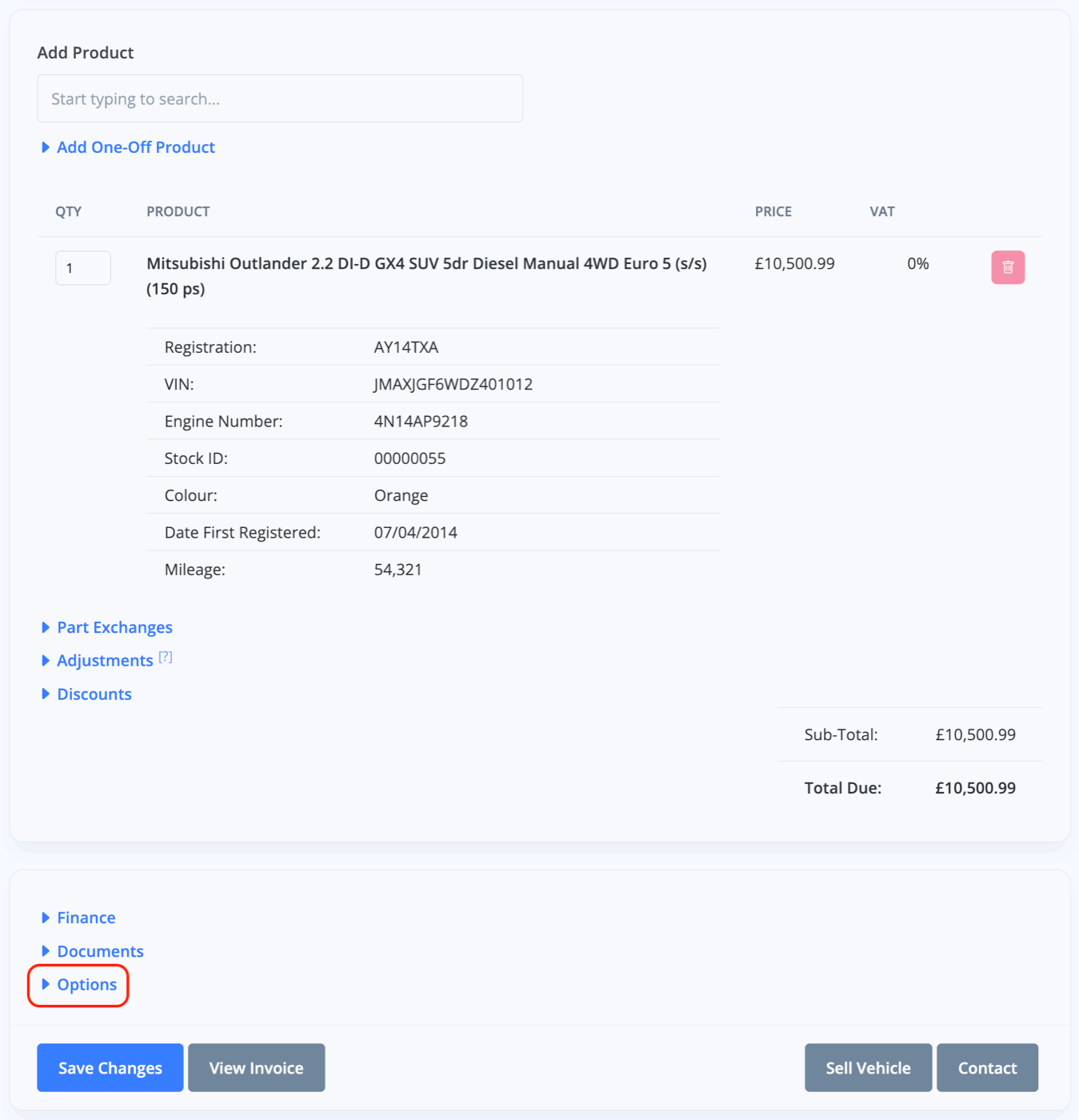
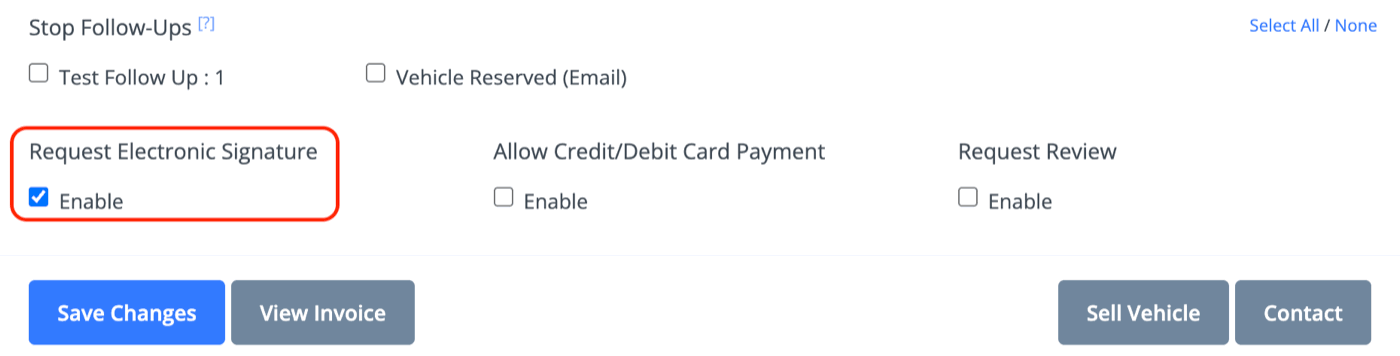
Once enabled, you can then go to create the invoice.
Note, if you'd like this to default to being enabled, you can set this in the Business -> Invoicing section, under the 'Invoicing Defaults' section as the 'Request Electronic Signature Default' option.
Once you have enabled the option to request for an eSignature for the invoice, you will then need to issue the invoice. You can do this by viewing the invoice and clicking the 'Issue Invoice' button.
Once issued, you should be displayed with a banner containing two buttons: 'Share' & 'eSign'.
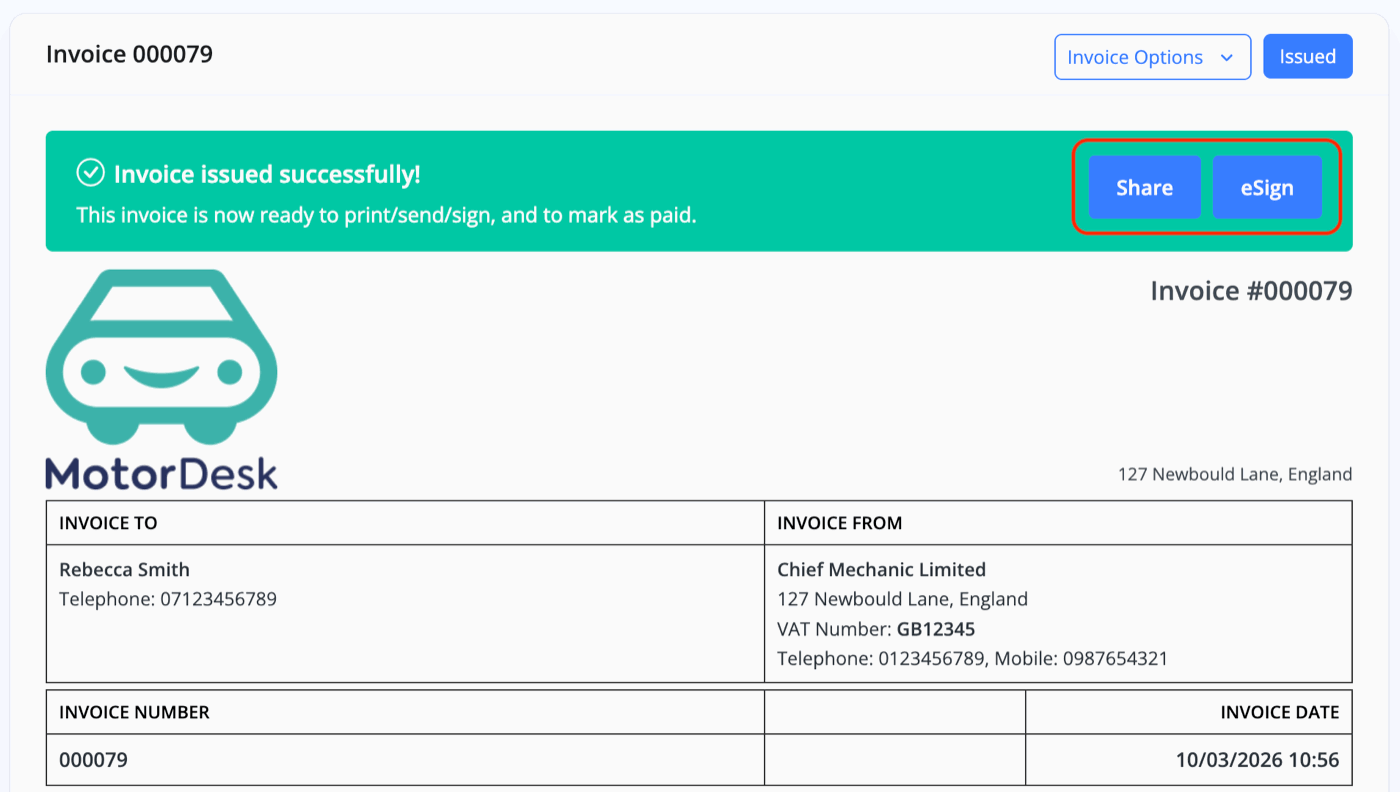
eSign
You will click the 'eSign' button if the customer is present physically - this will then display you a pop-up box that has the invoice within it, and also an input box where the customer can sign. You can then click the blue 'Save Signature' button to save the customers signature.
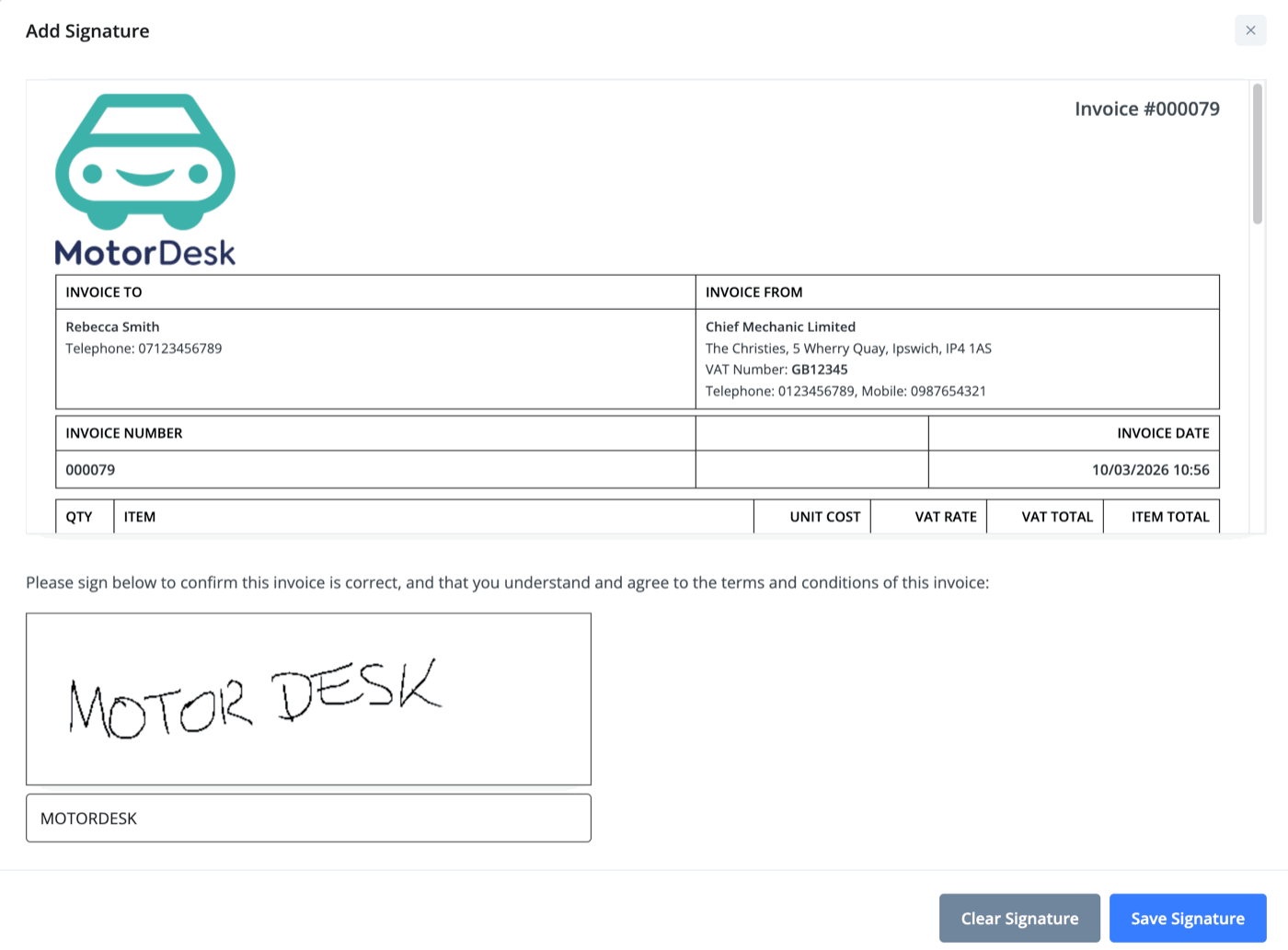
Once you click 'Save Signature', you can then view the signature on the invoice.
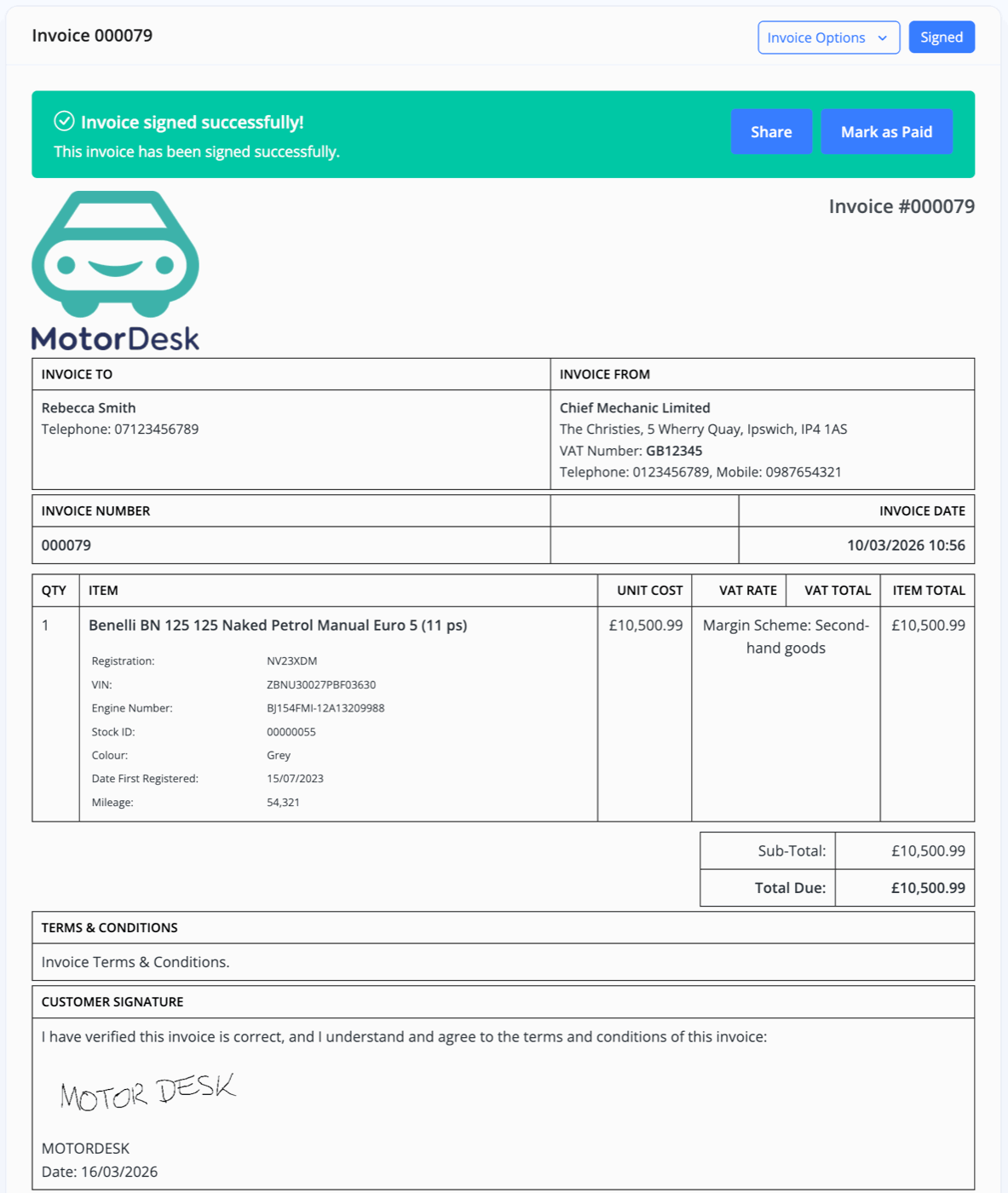
Share
You would use this option when the customer is not with your physically - where they can eSign via their own device.
Clicking the 'Share' button will give you a pop-up that includes a QR code, and a URL.
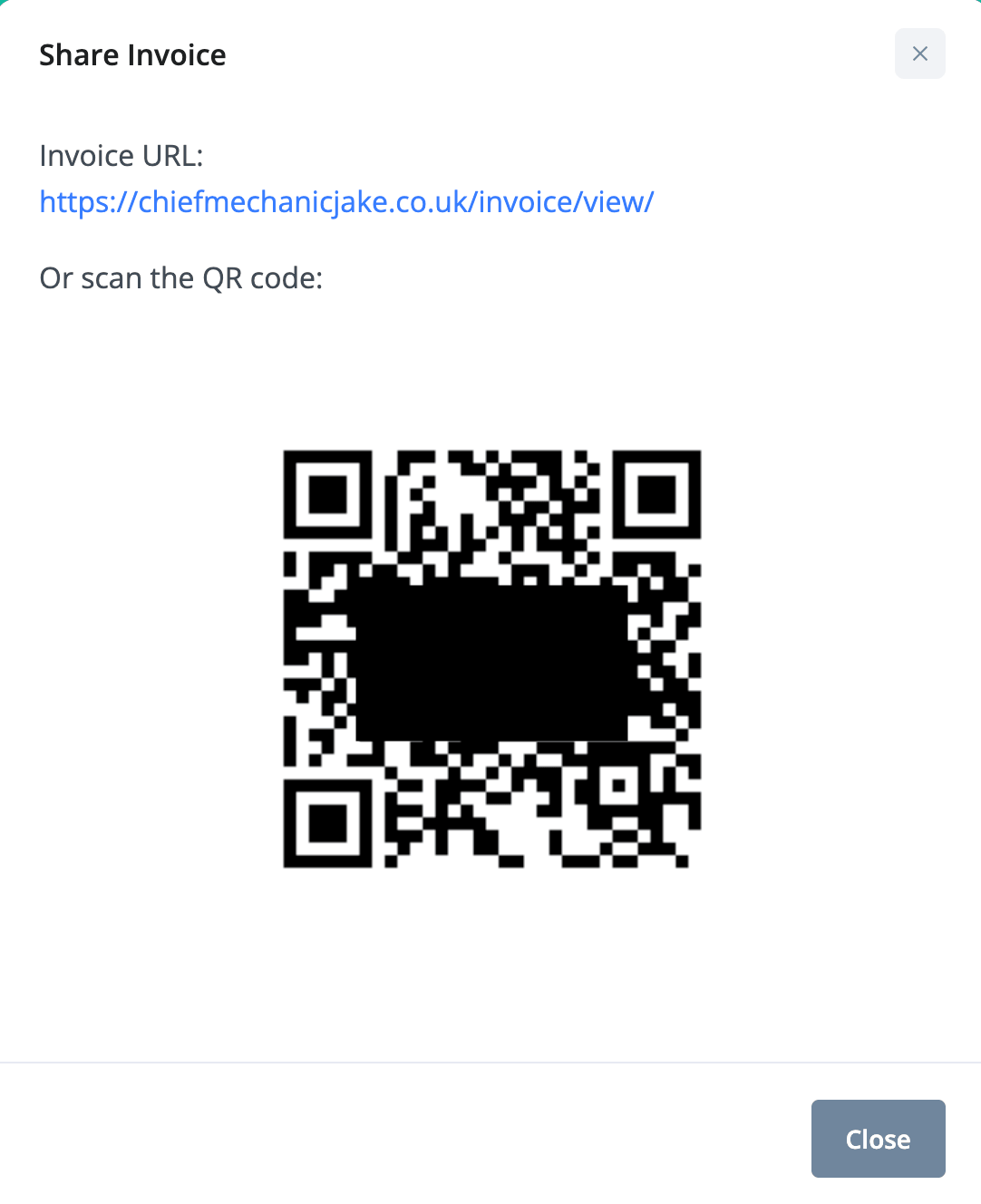
You can choose to send either of these to the customer - they can then use these to open up a page on your website.
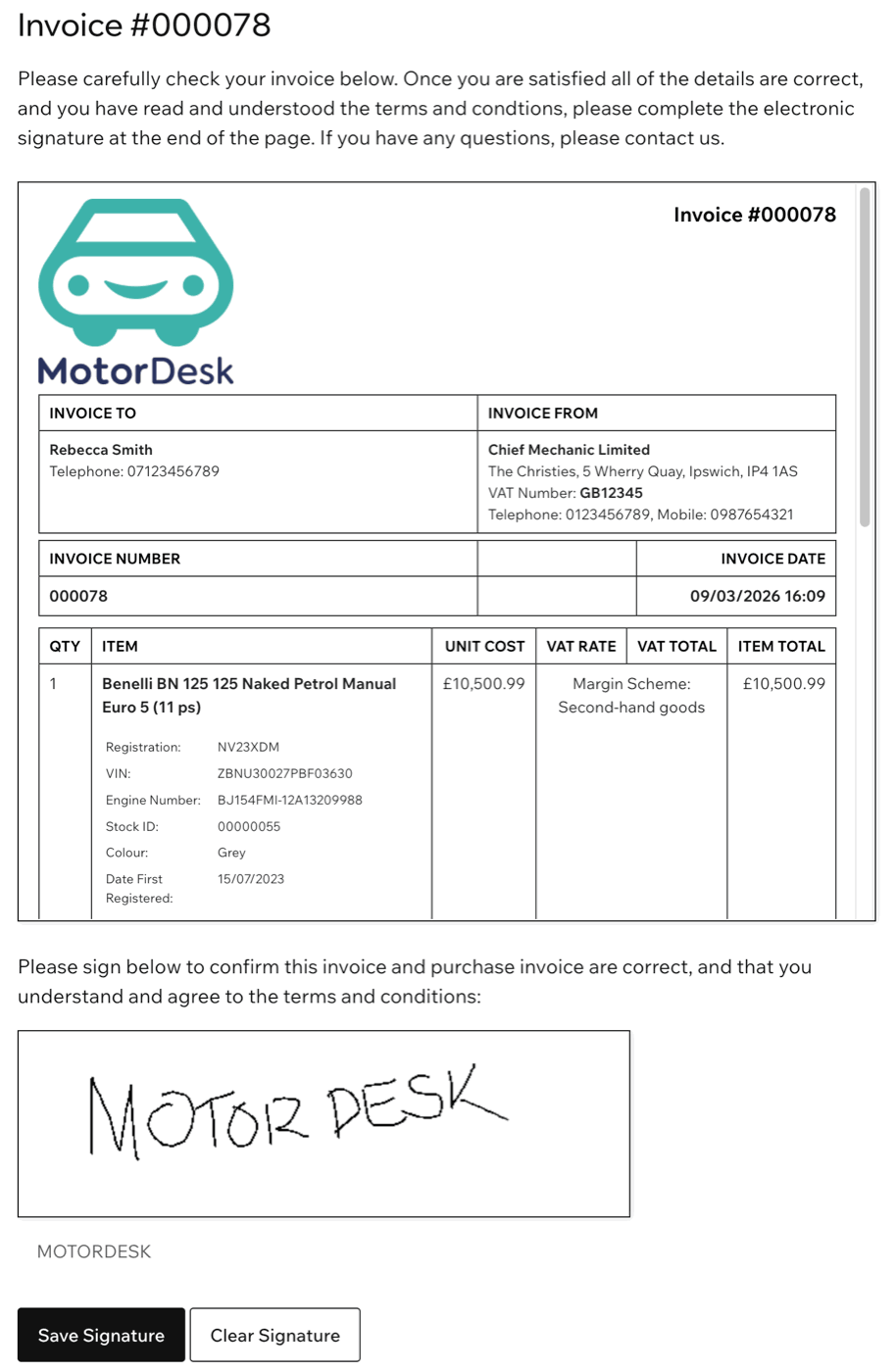
Again, once the customer submits their eSignature, you will be able to see this on the invoice when viewing it.
Related Documentation
Feature Fast Track
- Add Pages To Your Navigation Menu
- Add Your Products
- Analysing Multiple Vehicles For Purchase
- Automate Follow-Up Emails
- Creating Templates to Automate Social Media
- Edit an Invoice Date/Date Of Supply
- Manage Vehicle Jobs & Tasks
- OCR (Automatic Invoice Reader)
- Organise Processes with Workflows
- Organise Vehicle Tasks with Checklists
- Requesting eSignatures For Invoices
- Setting Up Your AA Cars Feed
- Setting Up Your AutoTrader Feed
- Setting Up Your Car & Classic Feed
- Setting Up Your CarGurus Feed
- Setting Up Your CarWow Feed
- Setting Up Your Dealerway Feed
- Setting Up Your MOTORS Feed
- Start a Blog on Your Website
- Utilise Your Document Library
- Utilise Your Image Library
- Vehicle Statuses